





InHand CPE02 5G Wi-Fi 6 Router — AX5400, Plug & Play, Tri-Carrier Certified
Home · SOHO · Retail · Temporary Office · AT&T / Verizon / T-Mobile Certified
Fiber-class 5G speed over the air. No technician. No waiting.

Why CPE02
5G Speed Up to 2.6 Gbps
Qualcomm X62 5G SA/NSA module delivers 2.6 Gbps downlink and 1.0 Gbps uplink (SA). 4x4 MIMO Sub-6 GHz with 256QAM for maximum throughput.
Wi-Fi 6 AX5400 Dual-Band
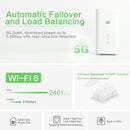
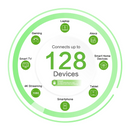
Dual-band Wi-Fi 6 up to 5400 Mbps. Supports 128 concurrent Wi-Fi clients and 200 total users across wired and wireless.
5G + Broadband Backup
Automatic failover and load balancing between 5G cellular and wired broadband. Never lose connection when either link drops.
Tri-Carrier Certified
Officially certified by AT&T, Verizon, and T-Mobile. Insert any major carrier SIM and go. No compatibility guessing.
Desktop or Wall-Mount
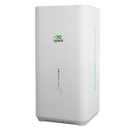
Sleek cylindrical design at 105 x 105 x 217 mm. Place it on a desk or mount it on a wall. Blends into any home or office interior.
InCloud AI Management
Zero-touch remote deployment, bulk firmware upgrades, and real-time monitoring via InCloud Manager. Manage hundreds of sites from one dashboard.

Designed for your shelf, not your server room.
The CPE02 is a 5G CPE that looks like it belongs in your living room. Its clean cylindrical form factor, soft LED status ring, and compact 105 x 105 x 217 mm footprint mean you can place it on a desk, a shelf, or a countertop without it becoming an eyesore. No exposed antennas. No clutter. Just fast 5G.

Two internet lines. One seamless experience.
The CPE02 can use 5G cellular as the primary connection and wired broadband as backup — or vice versa. Real-time link detection automatically switches traffic when one line fails. Load balancing splits traffic across both links for peak performance. Your video calls stay connected even when the fiber goes down.

Put it anywhere. It just works.
Place the CPE02 on a desk, a TV stand, or a window sill for the best 5G signal. Or mount it on a wall with the optional bracket to free up surface space. The vertical design maximizes internal antenna performance while minimizing footprint. Plug in power, insert a SIM, and you are online in minutes.
Applications
 Home Internet5G home broadband that replaces cable and DSL
 SOHO OfficeReliable video calls and file sharing for remote work
 Retail & HospitalityPOS, guest Wi-Fi, and digital signage in one
 Temporary OfficeInstant connectivity for construction sites and pop-ups
Frequently Asked Questions
What does the CPE02 offer?
The CPE02 is an indoor 5G CPE that converts cellular into Wi-Fi 6 and wired Ethernet — sized for retail stores, restaurants, clinics, and hybrid offices that need fast broadband without a fixed ISP line. Three regional SKUs:
NANR (US) — Ethernet: 1 x 2.5 GbE WAN + 1 x GbE LAN | Wi-Fi 6 peak: 5400 Mbps | Embedded Verizon eSIM
EUNR (EU/APAC) — Ethernet: 2 x GbE (1 WAN + 1 LAN) | Wi-Fi 6 peak: 3000 Mbps
CNNR (China) — Ethernet: 2 x GbE | Wi-Fi 6 peak: 3000 Mbps
All variants support 5G SA/NSA, dual WAN (cellular + wired) with WAN/LAN port switching, and up to 200 users / 128 Wi-Fi clients per device. Powered by the supplied 12 V/3 A adapter (≤18 W peak), desktop or wall-mountable, IP20 indoor rating.
How do I access the CPE02 web interface?
Connect your computer via Ethernet, or join the default Wi-Fi SSID CPE02-(last 6 of MAC) or CPE02-5G-(last 6 of MAC). The default Wi-Fi password is the last 8 digits of the device serial number. Open a browser and go to https://192.168.2.1 — accept the self-signed certificate. Log in with the credentials on the device nameplate.
How do I connect the CPE02 to cellular and set the APN?
With the device powered off, insert the SIM card. Power on — the CPE02 auto-detects the carrier and applies the matching APN in most cases, so no manual setup is needed. If the cellular link does not come up, log in, go to Internet > Uplink Table, click Edit next to Cellular, enter the APN, and click Save. Configure SIM mode (SIM1 only, eSIM only, or Dual-SIM) on the same screen — the NANR SKU includes an embedded Verizon eSIM. Verify by checking the Network LED: steady green = cellular (or wired) connected; blinking green = connecting to cellular; blinking red = network disconnected.
How do I pass the public cellular IP through to a downstream device?
The CPE02 supports IP Passthrough — the public IP from the cellular connection is passed directly to a chosen downstream device by MAC binding. Go to Services > Passthrough Settings, enable IP Passthrough, and bind the destination device’s MAC address. Click Apply. The downstream device receives the public IP via DHCP; the CPE02 itself becomes accessible only on its local management interface.


